9 / 15
Transforming Objects
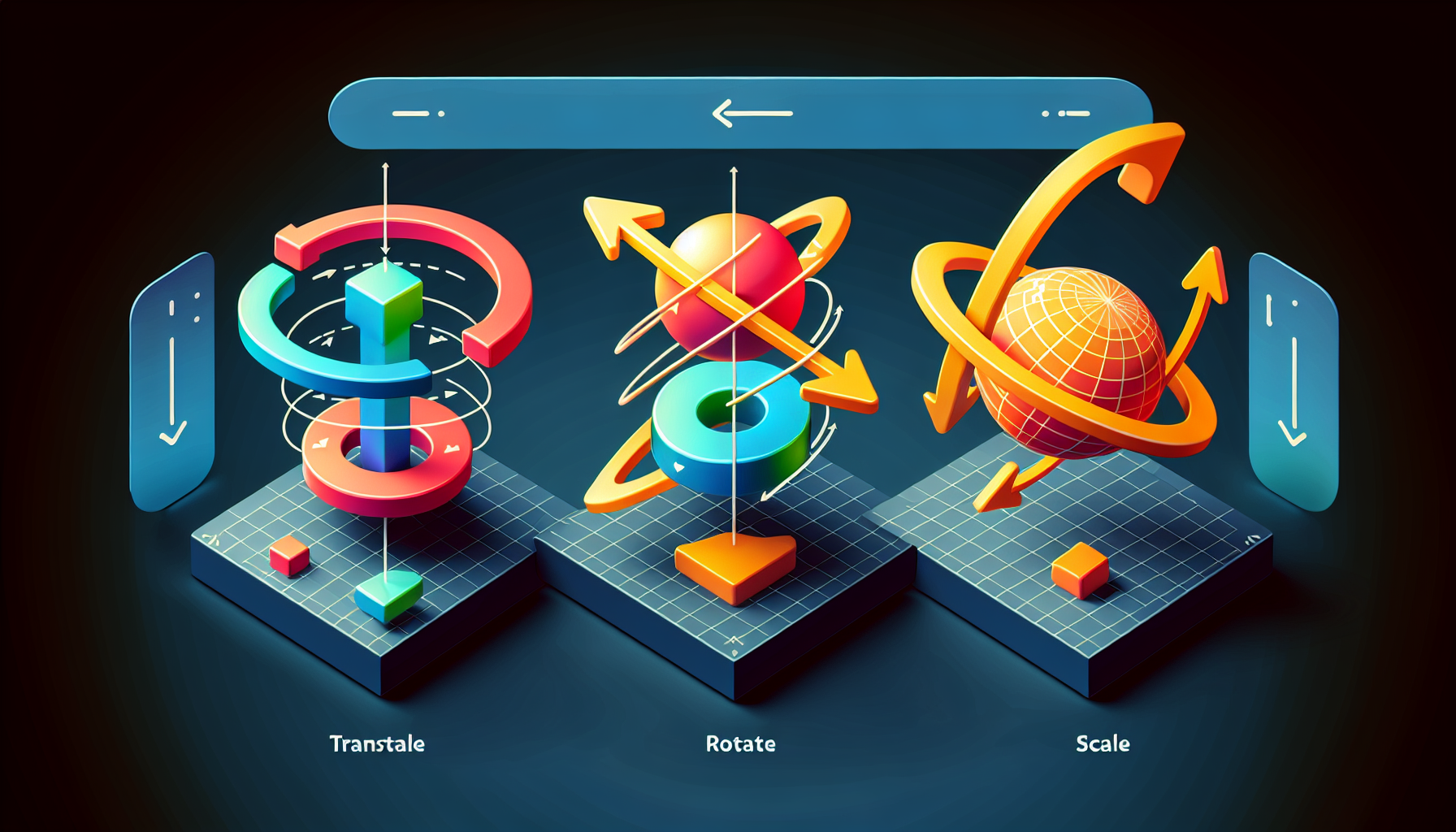
There are three fundamental transformations in 3D:
1. Translate (Move)
Change an object's position in space.
How to use:- Press G or click Move in toolbar
- Drag colored arrows for single axis
- Drag planes for two axes at once
- Type exact values in Properties panel
2. Rotate
Change an object's orientation.
How to use:- Press R or click Rotate in toolbar
- Drag colored circles to rotate around axis
- Values are in degrees (0-360)
- Watch the rotation values in Properties
3. Scale
Change an object's size.
How to use:- Press S or click Scale in toolbar
- Drag axes to stretch in one direction
- Hold Shift for uniform scaling
- Scale values are multipliers (1 = original)
💡
Tip
Hold Shift while scaling to maintain proportions! This prevents accidentally stretching your object into weird shapes.
The Properties Panel
For precise control, use the Properties panel (right side):
- Type exact X, Y, Z values
- Position: World coordinates
- Rotation: Degrees
- Scale: Multipliers
Transform Shortcuts
| Key | Action |
|---|---|
| G | Move (Grab) |
| R | Rotate |
| S | Scale |
ℹ️
Info
These shortcuts come from Blender, one of the most popular 3D tools. Learning them here means you're learning industry-standard skills!
Tips
- Enable Snap for grid alignment
- Use Shift+D to duplicate while transforming
- Reset transforms in Properties panel
⚠️
Warning
Avoid using non-uniform scale (different X, Y, Z values) when possible - it can cause issues when exporting models for 3D printing or game engines.