10 / 15
Naming and Organizing
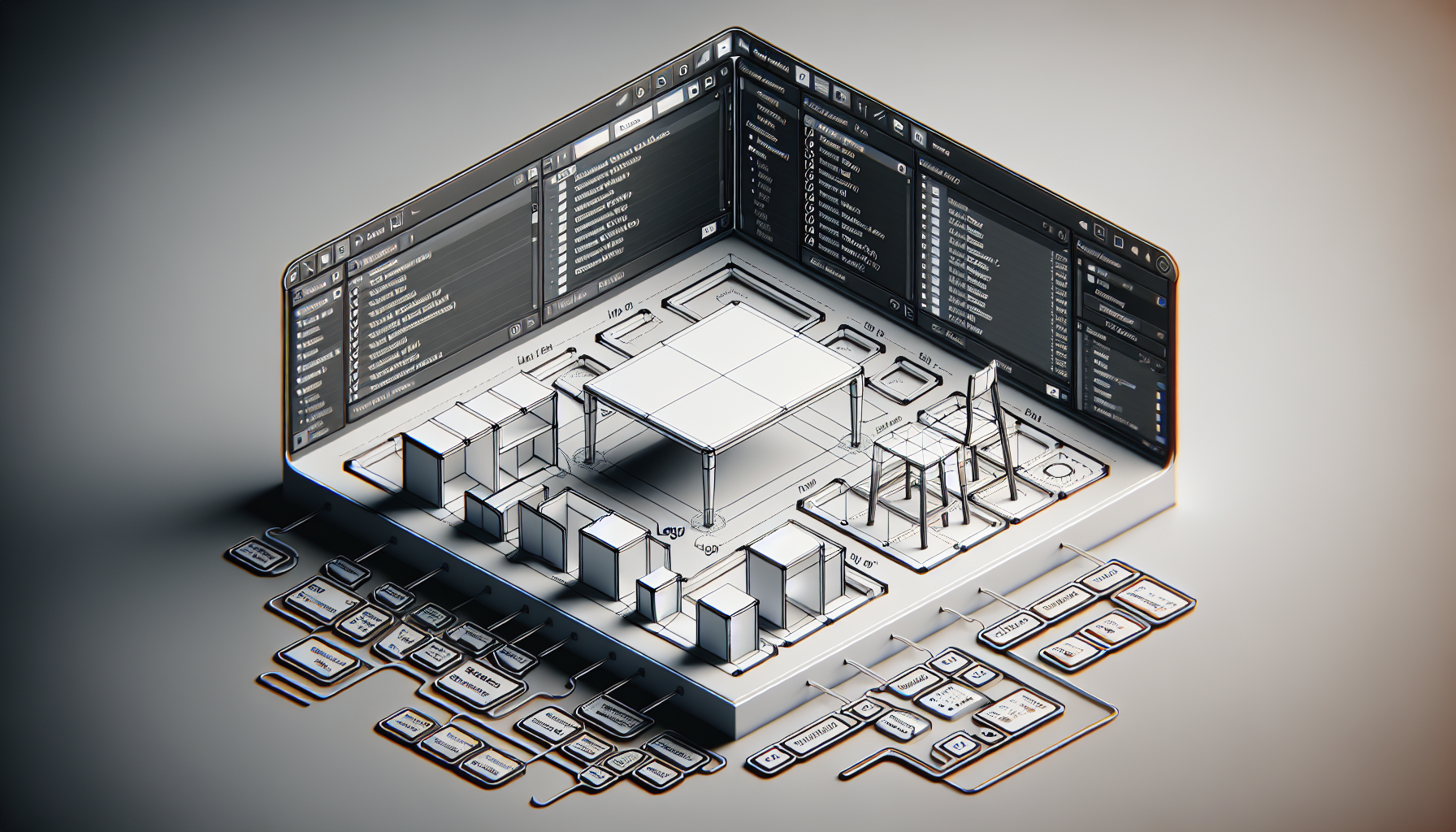
Good organization is essential for complex scenes.
Why Names Matter
- Default names like "Box" and "Sphere" get confusing
- Good names describe what the object represents
- Essential for team collaboration
- Makes finding objects easy
⭐
Important
Naming your objects is a professional habit that will save you hours of confusion as your projects get more complex.
Naming Best Practices
| ❌ Bad | ✓ Good |
|---|---|
| Box | Desktop_Surface |
| Sphere | Tennis_Ball |
| Cylinder | Table_Leg_01 |
How to Rename
- Double-click the name in Scene panel
- Type the new name
- Press Enter to confirm
- Select the object
- Edit the name field at the top
Naming Conventions
Use consistent naming:
Object_Part_Number- Table_Leg_01, Table_Leg_02Category_Name- Furniture_Chair, Furniture_Table- No spaces (use underscores or CamelCase)
💡
Tip
Include numbers when you have multiple similar objects: Leg_01, Leg_02, Leg_03. This makes it easy to select specific parts.
Visibility and Locking
In the Scene panel, each object has:
- 👁️ Eye icon - Toggle visibility
- 🔒 Lock icon - Prevent accidental changes
Use these to:
- Hide finished objects while working
- Lock objects you don't want to move
📝
Note
Locking an object is great for background elements that you've positioned perfectly and don't want to accidentally move.